Total Pageviews
Friday, April 14, 2017
Wednesday, March 22, 2017
PURGE IN CREO
Purge Command in Creo :
Purge command in
Creo helps to remove all the old versions and retains the latest version of
Creo files (prt,asm,drw etc).
Without opening a Creo session, we can execute purge command from any directory. But
before that we need to make sure that
1.
An environment variable value set for “Path”
parameter.
2.
Paramter value should be equal to the path where
the “purge.exe” resides
How to set the environment variable value?
Step 1
Go to System window and click on Advanced System Settings
Step 2
Click on Environment Variables… button
Step 3
From System Variables select
Path and click
Edit button
Enter a variable value for path. As mentioned earlier it
should locate the purge.exe. If you see an already existing path variable
value, use “;” for separating different paths. Say x ,y and z are different
path variable values then use x:y:z as depicted below
Normally the path variable value should be “C:\Program
Files\PTC\Creo 4.0\F000\Common Files\x86e_win64\obj\purge.exe”
How to execute the purge command after setting up everything?
Go to the folder location where you have the creo files to
be purged.
See fg0005.prt.8, fg0005.prt.9, fg0005.prt.10, fg0005.prt.11
and fg0005.prt.12.
And also different versions of fg0003.prt, fg0004.prt and
fg0006.prt.
Press SHIFT key and RMB click
Choose Open command window here.
Now type Purge and press Enter
All files within the folder will be purged and you can see
only latest versions of creo files
Hope this topic was helpful! Please feel free to download
pdf file of this topic here!
Thanks
Wednesday, February 22, 2017
SEARCHING FOR PARTS WITHIN ASSEMBLY WITH A WEIGHT CRITERIA
Step1
Make sure that your part and assembly template has the
following
1. Parameters
Weight and Material
2. Relations
defining the above parameters
Weight=mp_mass("")
Step2
Set
the configuration option mass_property_calculate
to automatic
(calculates mass properties on each regeneration)
Step3
Setting
up the Creo model tree within the main assembly environment as shown below

Step 4
Make
sure each part within the assembly has an assigned material. Relation
calculates the mass and assign the value to Weight parameter
Also
the material parameter (Type- “String”) will have the assigned material name.
The
value for MATERAIL AND WEIGHT for each part within the assembly is visible in
the model tree columns against MATERAIL and WEIGHT parameters respectively as
shown above
Step 5
Click
on Find
Step 6
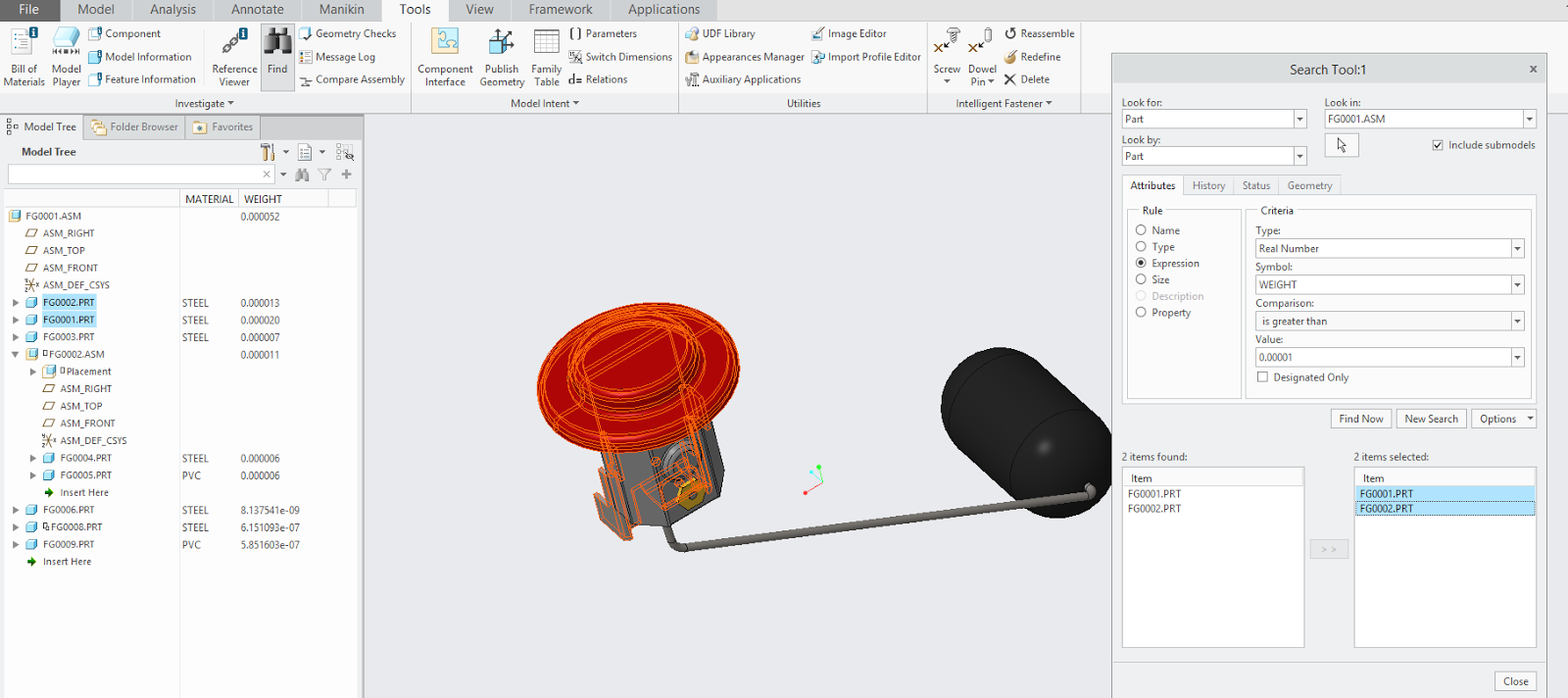
In the
search window, set as shown below and click on Find Now
Parts
weighing more than 0.00001 Tons (here mass units in Ton) are highlighted.
Be
careful with the units used in the design.
Download
copy of this tip here!
Thanks
for reading!
Thursday, February 16, 2017
Controling Model quality in Creo Parametric
Controling Model
quality in Creo Parametric
Model quality settings in Creo by default allow for a better
performance. There are a few tweaking we can do on the model quality settings
to get a better model display on the screen.
Below images depict a low model quality setting. A smooth
curvy edge is displayed as an approximation by straight lines.
Light reflecting off the surface is not smooth enough too.
See below picture.
Another setting that controls model display quality is
Anti-Aliasing. When Anti-Aliasing turned off ,you get a stairstep-like
lines as shown in the picture below
Let’s dive straight into the settings that controls display
quality in Creo now
1.
Go to Creo Parametric options(File ->Options)
2.
Go to Model
Display
3. Go to Entity
Display and set the options as shown below
Now come back and check the model. If needed, turn
the display style to Shading With
Reflections and check Ambient
Occlusion On
Subscribe to:
Posts (Atom)